


Subscribe & Save
It's the smartest way to get your most gorgeous skin at the very best value. Incredible savings, free shipping on U.S. orders $35+, and extra loyalty points.

Subscription Benefits
20% off your first 3 orders and 15% off every order after. Plus, free shipping in the U.S.
Free gift on your 1st two orders.
Receive first access to our biggest sales of the year.
You can easily cancel your membership online for any reason at any time.
Join our private community to connect on skincare that’s safe for you, animals and the planet.
How It Works
Pick your True Botanicals faves, subscribe to auto-delivery, and get exclusive savings on every shipment.
Choose your ship date and delivery frequency. You’ll get email reminders and can change or cancel at any time.
Enjoy free shipping in the U.S. on orders $35+
Choose your first product to get started
-
Chebula Active Serum
This serum is clinically proven to outperform two leading anti-aging.- 30% off your 1st order
- 20% off your 2nd & 3rd orders
- 15% off every order after
- Gift on your first 2 orders
Frequency RecommendationWe recommend the following replenishment cycle:- Usage
- Frequency
- Twice a day
- Every 1 month
- Once a day
- Every 2 months
-
Renew Pure Radiance Oil
Our best-selling face oil that helps target signs of aging.- 30% off your 1st order
- 20% off your 2nd & 3rd orders
- 15% off every order after
- Gift on your first 2 orders
Frequency RecommendationWe recommend the following replenishment cycle:- Usage
- Frequency
- Twice a day
- Every 2 months
- Once a day
- Every 3 months
- Just a few times a week
- Every 4 months
-
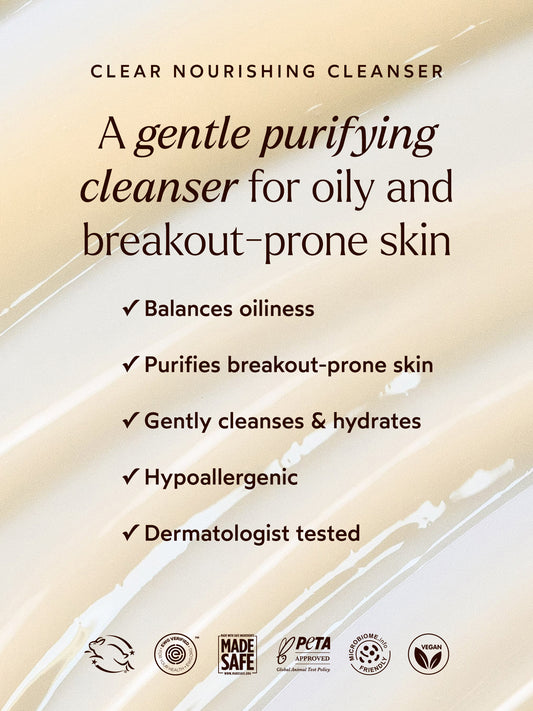
Clear Nourishing Cleanser
A gentle balancing facial cleanser for oily and breakout-prone skin.- 30% off your 1st order
- 20% off your 2nd & 3rd orders
- 15% off every order after
- Gift on your first 2 orders
Frequency RecommendationWe recommend the following replenishment cycle:- Usage
- Frequency
- Twice a day
- Every 1 month
- Once a day
- Every 2 months
- Not the only cleanser I use
- Every 3 months
-
Clear Pure Radiance Oil
A does-it-all moisturizing face oil that helps prevent breakouts, fights.- 30% off your 1st order
- 20% off your 2nd & 3rd orders
- 15% off every order after
- Gift on your first 2 orders
Frequency RecommendationWe recommend the following replenishment cycle:- Usage
- Frequency
- Twice a day
- Every 2 months
- Once a day
- Every 3 months
- Just a few times a week
- Every 4 months
-
Renew Nourishing Cleanser
A gentle purifying cleanser for normal to dry skin.- 30% off your 1st order
- 20% off your 2nd & 3rd orders
- 15% off every order after
- Gift on your first 2 orders
Frequency RecommendationWe recommend the following replenishment cycle:- Usage
- Frequency
- Twice a day
- Every 1 month
- Once a day
- Every 2 months
- Not the only cleanser I use
- Every 3 months
-
Chebula Extreme Cream
An anti-aging moisturizer that hydrates, softens, evens tone—without pore-clogging waxes.- 30% off your 1st order
- 20% off your 2nd & 3rd orders
- 15% off every order after
- Gift on your first 2 orders
Frequency RecommendationWe recommend the following replenishment cycle:- Usage
- Frequency
- Twice a day
- Every 1 month
- Once a day
- Every 2 months
- Once a week
- Every 3 months
-
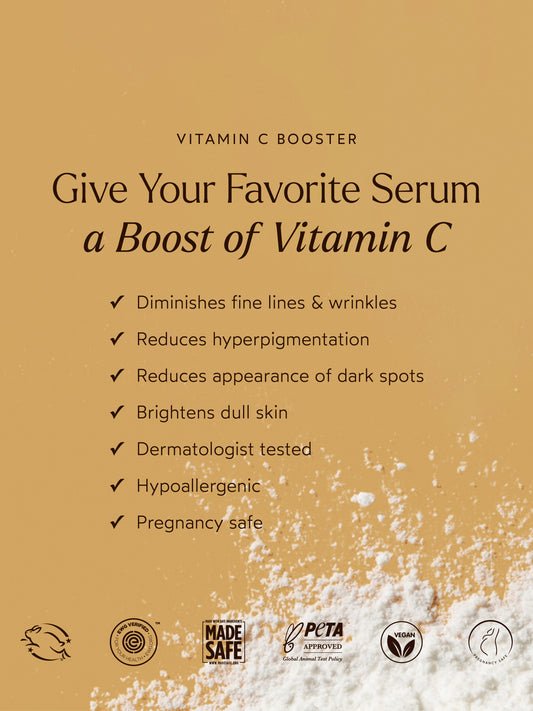
Vitamin C Serum-Booster
Dramatically give the look of brighter skin and help reduce.- 30% off your 1st order
- 20% off your 2nd & 3rd orders
- 15% off every order after
- Gift on your first 2 orders
Frequency RecommendationWe recommend the following replenishment cycle:- Usage
- Frequency
- Twice a day
- Every 4 months
-
Calm Pure Radiance Oil
A moisturizing oil for sensitive skin that helps soothe and.- 30% off your 1st order
- 20% off your 2nd & 3rd orders
- 15% off every order after
- Gift on your first 2 orders
Frequency RecommendationWe recommend the following replenishment cycle:- Usage
- Frequency
- Twice a day
- Every 2 months
- Once a day
- Every 3 months
- Just a few times a week
- Every 4 months
-
Pure Radiance Body Oil
A moisturizing oil blend that reveals your most radiant skin.- 30% off your 1st order
- 20% off your 2nd & 3rd orders
- 15% off every order after
- Gift on your first 2 orders
Frequency RecommendationWe recommend the following replenishment cycle:- Usage
- Frequency
- Morning and night as my body oil
- Every 1 month
- Once a day as my body oil
- Every 2 months
- Not my only body oil
- Every 3 months
-
Ginger Turmeric Cleansing Balm
Our viral cleansing balm effectively removes makeup, sunscreen, and dirt.- 30% off your 1st order
- 20% off your 2nd & 3rd orders
- 15% off every order after
- Gift on your first 2 orders
Frequency RecommendationWe recommend the following replenishment cycle:- Usage
- Frequency
- Twice a day
- Every 1 month
- Once a day
- Every 2 months
- Not the only cleanser I use
- Every 3 months
- A few times a week
- Every 4 months
-
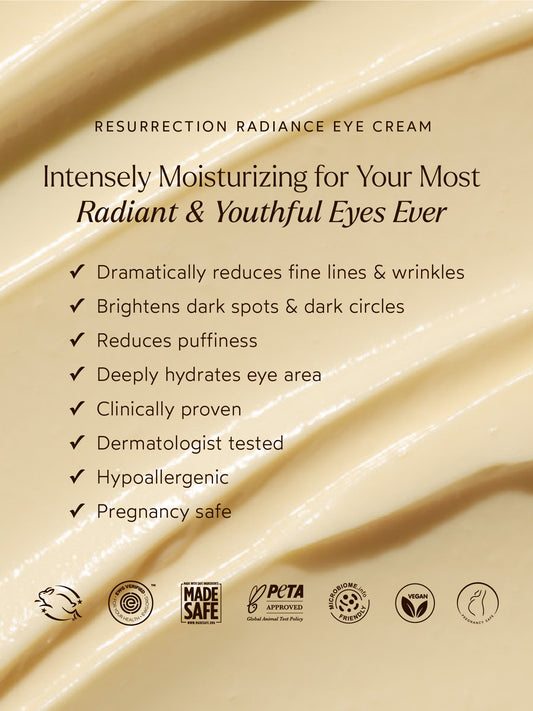
Resurrection Radiance Eye Cream
Clinically proven to dramatically reduce the appearance of dark circles,.- 30% off your 1st order
- 20% off your 2nd & 3rd orders
- 15% off every order after
- Gift on your first 2 orders
Frequency RecommendationWe recommend the following replenishment cycle:- Usage
- Frequency
- Twice a day
- Every 2 months
- Once a day
- Every 3 months
-
Renew Nutrient Mist
A hydrating face mist that quenches skin with antioxidants.- 30% off your 1st order
- 20% off your 2nd & 3rd orders
- 15% off every order after
- Gift on your first 2 orders
Frequency RecommendationWe recommend the following replenishment cycle:- Usage
- Frequency
- Multiple times a day
- Every 1 month
- Once or twice a day after cleansing
- Every 2 months
- On occasion; when my skin needs a boost
- Every 3 months
-
Microbiome Enzyme Essence
Our next-generation prebiotic essence is clinically proven to deliver plump,.- 30% off your 1st order
- 20% off your 2nd & 3rd orders
- 15% off every order after
- Gift on your first 2 orders
Frequency RecommendationWe recommend the following replenishment cycle:- Usage
- Frequency
- Twice a day
- Every 2 months
- Once a day
- Every 3 months
- Just a few times a week
- Every 4 months
-
SuperSEA Firming & Lifting Treatment
Clinically proven to give you a lift. A revolutionary breakthrough.- 30% off your 1st order
- 20% off your 2nd & 3rd orders
- 15% off every order after
- Gift on your first 2 orders
Frequency RecommendationWe recommend the following replenishment cycle:- Usage
- Frequency
- Twice a day
- Every 1 month
- Once a day
- Every 2 months
- Just a few times a week
- Every 4 months
















Frequently Asked Questions
How does it work?
You can subscribe to your favorite True Botanicals must-haves here or on any product page. Just choose the “Subscribe and Save” option on the page and select your frequency.
Not sure how often you should ship? Don’t sweat it. Just click on the question mark to get suggestions based on your lifestyle.
Can I cancel anytime?
Absolutely! You can cancel at any time by going to Your Subscriptions, clicking on the specific product subscription and selecting “Cancel Subscription.” Please don’t hesitate to reach out if you need any help at trueteam@truebotanicals.com. We’re here for you!
How do I edit my subscription?
Whether you need your product ASAP or want to skip, it’s easy to adjust your skincare delivery at any time. After your first subscription is placed, you will want to log into your True Botanicals account. Go to “Your Subscriptions” to edit your ship date, frequency, quantity, add one-time products or more.
How do I include one-time products to my shipment?
After you make your first subscription, log into your account and head to “Your Subscriptions.”
On Mobile Devices: You can add another subscription by selecting the “+” button next to your current product subscription. Then add your one-time product.
On Desktop: You can add one-time products by selecting the “EDIT SUBSCRIPTION DETAILS” link on the top left of the page, then click on the “ADD” button to add the new subscription to your next shipment.